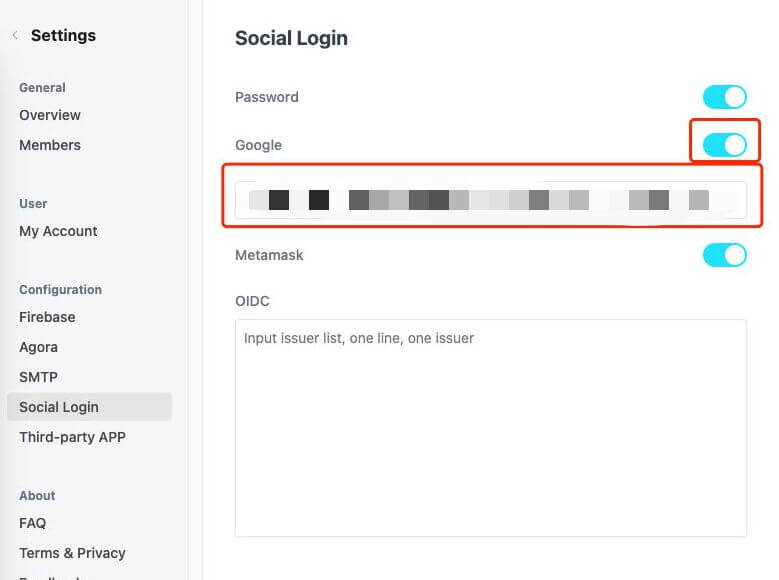
How to set up Google Login?
After Google login is enabled, you may let new members sign in as follows:
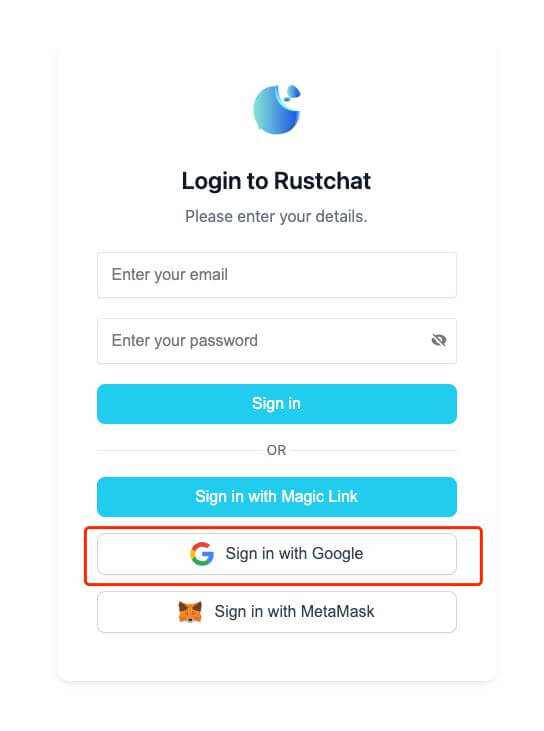
Steps:
1. You need to use your top-level domain name
Google login application needs top-level domain names, and secondary domain names cannot be used for a separate application.
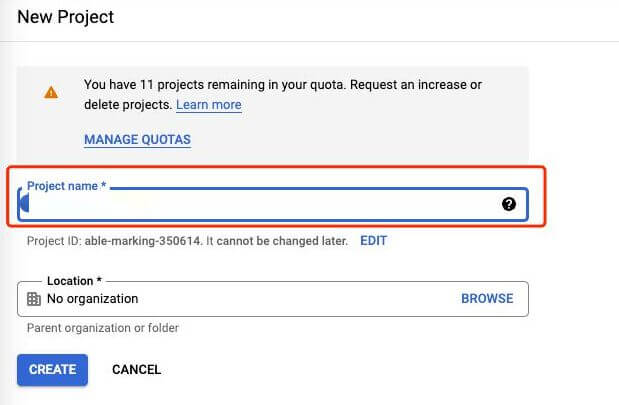
2. Open the Google console and create a new project
https://console.developers.google.com/apis
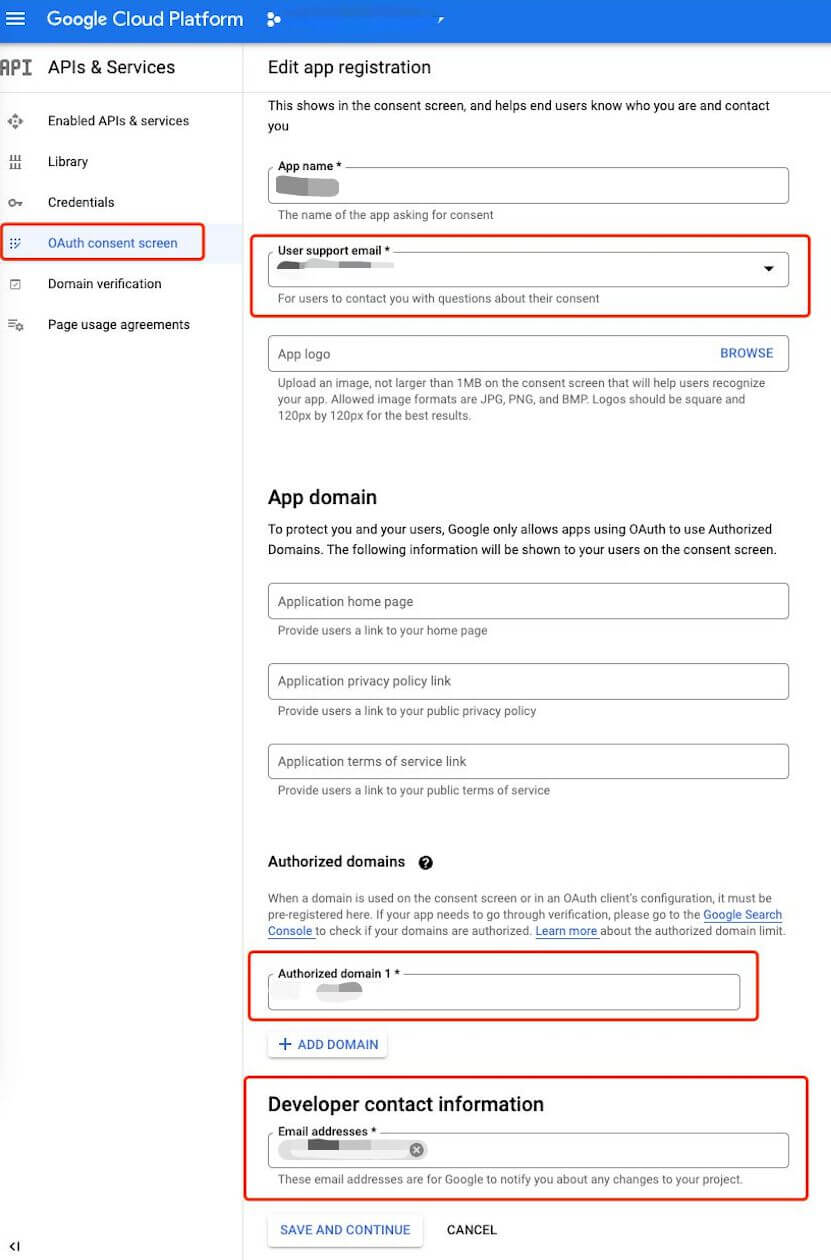
3. Create a consent screen
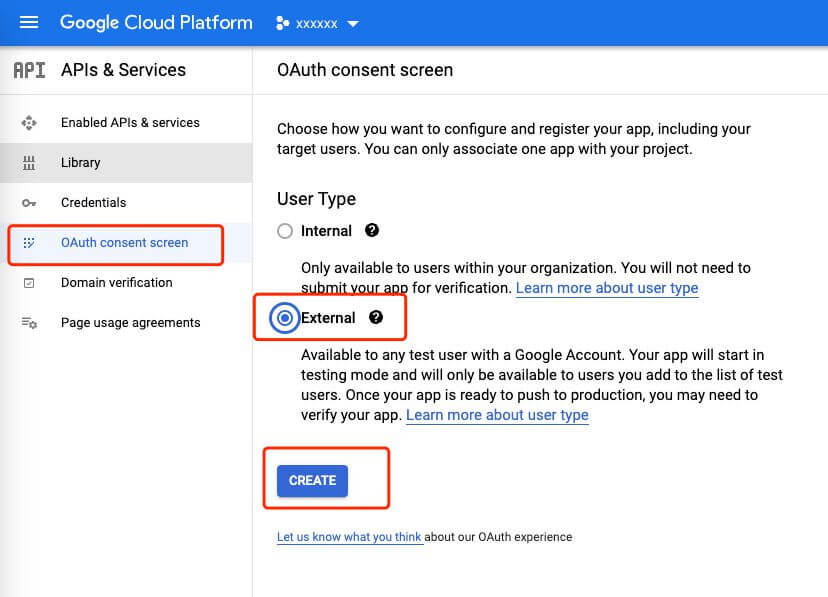
For Authorized domains, if your vocechat is deployed on your domain, please fill it with your top-level domain. This top-level domain will be seen on consent screen of Sign in with Google.
For example: if your vocechat can be accessed via https://chat.domain.com/, fill it with domain.com.
If you are using localhost as your host server, please fill it with both http://localhost and http://localhost:3000.
4. Create credentials
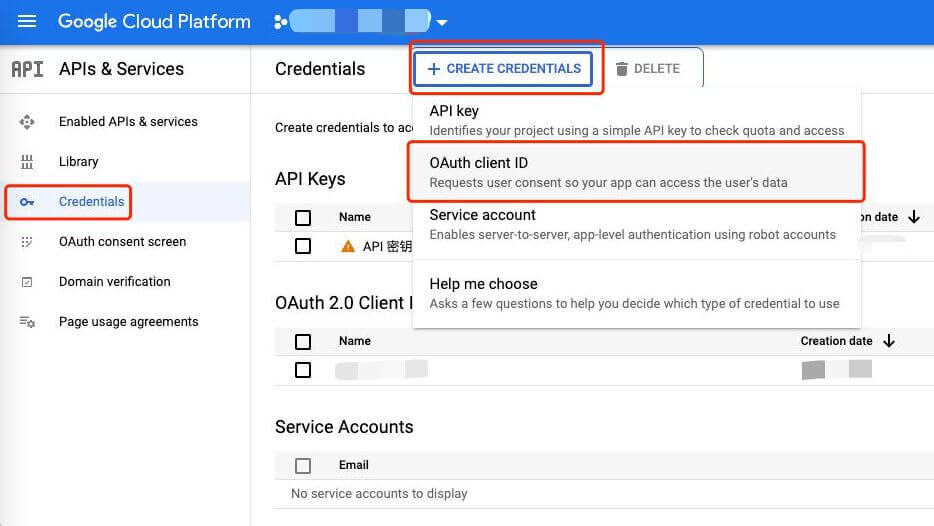
For Authorized JavaScript origins, type in the url that the front-end is deployed on.
For example: If you can see login page by visiting https://chat.domain.com/,type it in the Authorized JavaScript origins.
Leave Authorized redict URIs blank.
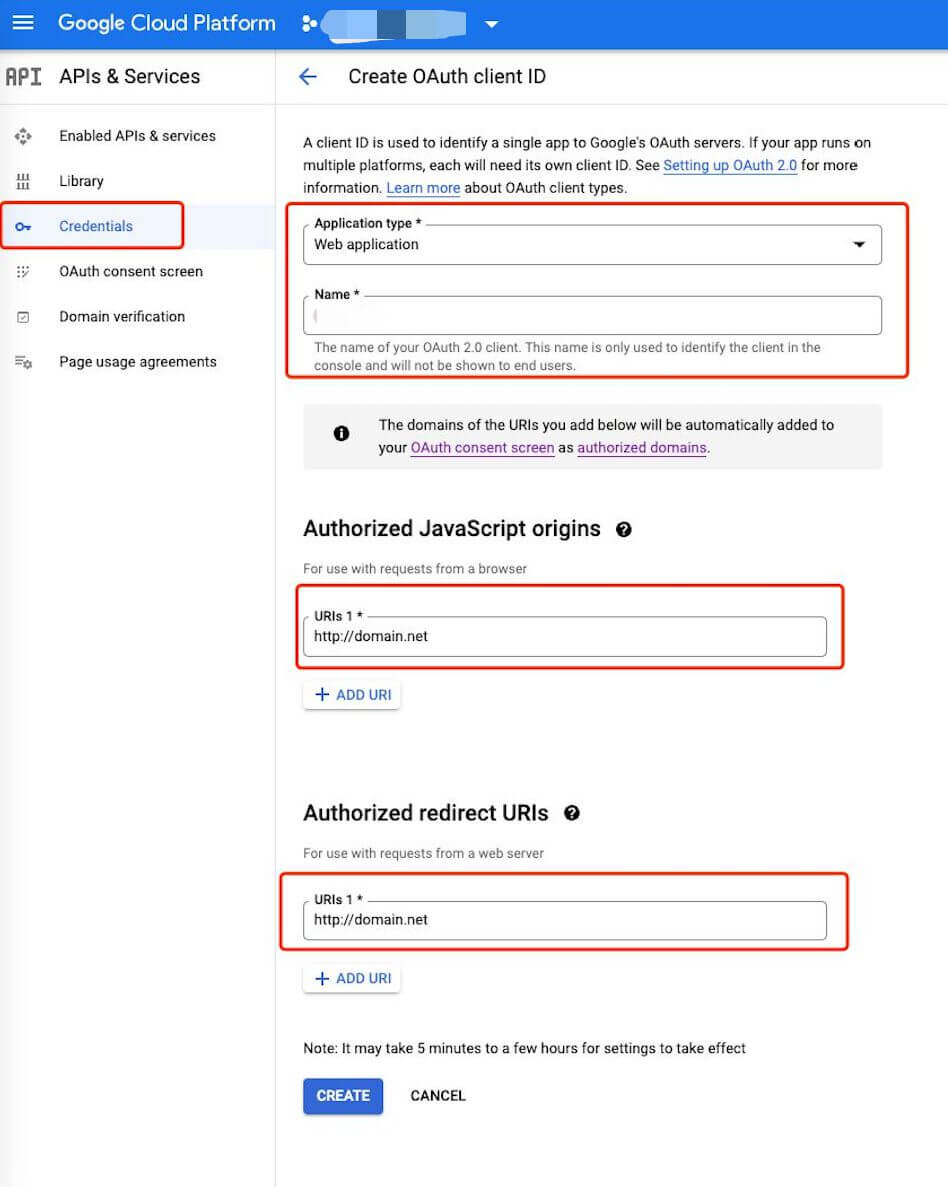
After this step, you will get the ClientID and PrivateKey.
5. Paste ClientID to Vocechat settings.
Paste the ClientID here.